Request verification
Request verification adds an extra layer of security by cryptographically signing every request and socket message sent by identified players. This prevents replay attacks and ensures requests haven't been tampered with in transit.
How it works
When enabled, the Unity package automatically generates a signature for each request using your verification key. Talo validates the signature before processing the request.
Configuration
Before enabling verification in your game, you must:
- Enable Verify requests on the Game Settings page.
- Create a verification key in the dashboard.
- Copy the key's version and value into your
Talo Settingsasset.
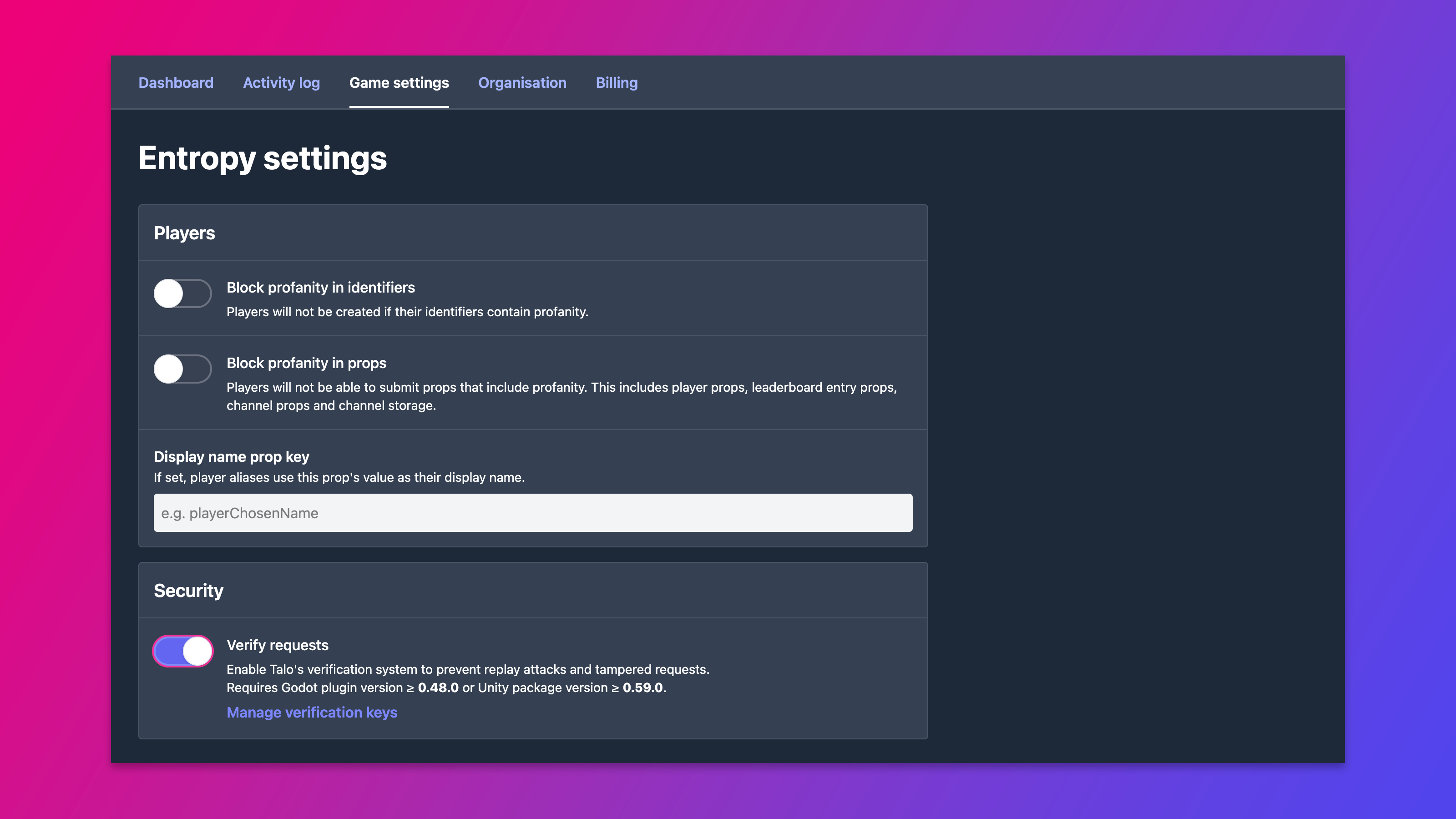
Once configured, requests and socket messages are automatically signed for identified players.
Talo Settings
Open your Talo Settings asset and update the following fields under the Verification section:
verificationEnabled
Enable this to start signing requests. You must also enable verification and add a verification key in the dashboard.
verificationKeyVersion
The version string of the verification key you created (e.g. "1").
verificationKeyValue
The secret value of the verification key.
Error handling
If a signature is invalid or missing, the server responds with 401 Unauthorized for HTTP requests or an INVALID_SIGNATURE socket error for WebSocket messages.